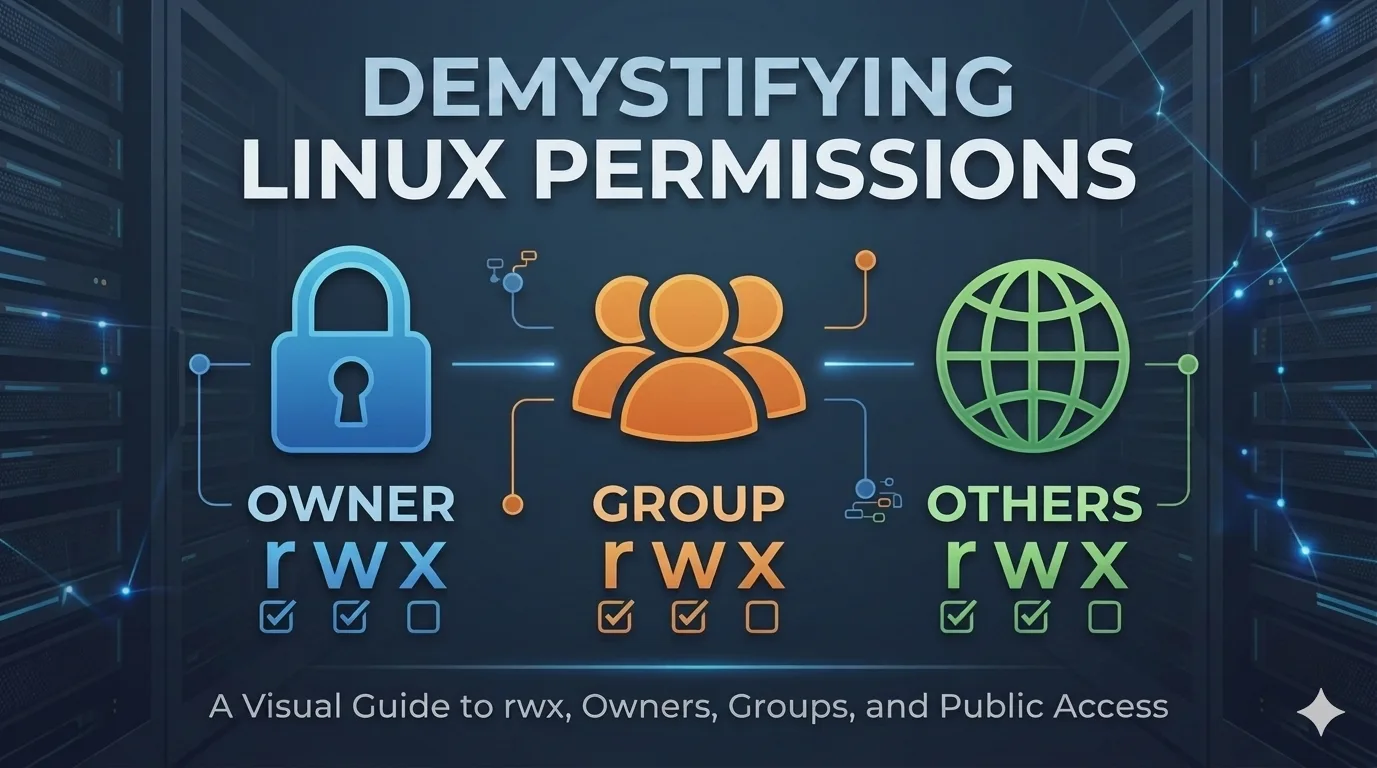

Understanding Linux File Permissions: Owner, Group, and Others Explained
Security is a foundational pillar of the Linux operating system. At the very heart of this security model is the file permissions system. If you have ever looked at a Linux terminal and felt confused by strings of letters like drwxr-xr-x, you are not alone.
This guide breaks down exactly how Linux decides who can see, modify, or run files on a system, using three simple categories: Owner, Group, and Others.
The Three Tiers of Linux Security
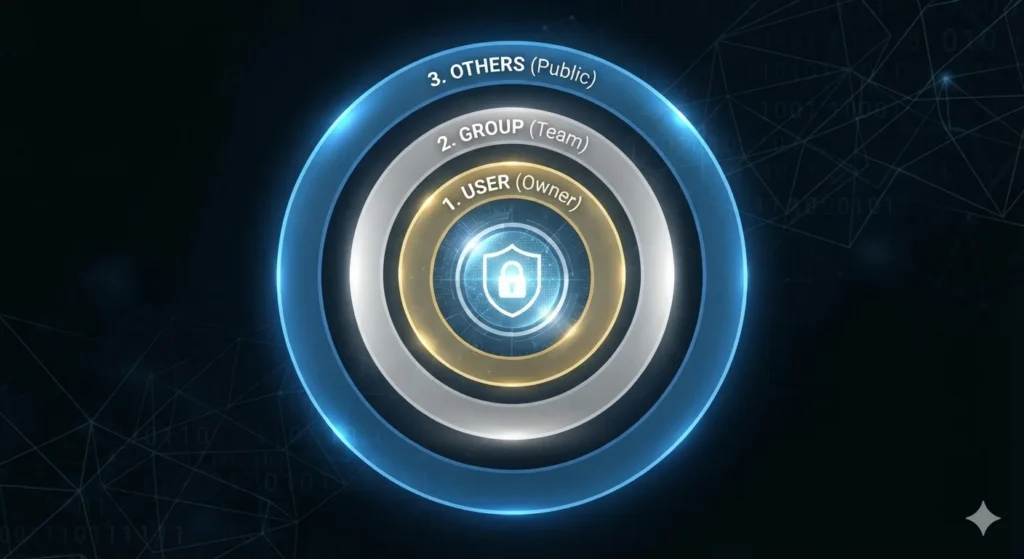
Every single file and directory in Linux is assigned to three distinct categories of users. When a user tries to access a file, Linux checks these categories in a specific order to see what they are allowed to do.
1. The Owner (User)
The Owner (often abbreviated as u) is typically the individual who created the file or directory.
- The Role: The owner has ultimate control over the file.
- Special Powers: Only the owner (or the system administrator, known as
root) can change the permission settings of that file. - Analogy: Think of the owner as the person who rents a private office in a commercial building. You hold the primary key, and you get to decide who else is allowed inside.
2. The Group
A Group (often abbreviated as g) is a collection of user accounts clustered together under a single label.
- The Role: Groups make user management simple. Instead of setting permissions for 50 individual users one by one, you can add those 50 users to a single group (like
marketingordevelopers) and assign permissions to the group instead. - Special Powers: Anyone who belongs to that group inherits whatever permissions the group has been granted.
- Analogy: This is your immediate project team. Your company gives the entire team keycard access to a shared conference room so you can collaborate on projects together.
3. Others (World)
The Others category (often abbreviated as o) represents every single user account on the system that is not the owner and is not a member of the assigned group.
- The Role: This is the “catch-all” safety net for the rest of the world.
- Remote Users: It is vital to remember that “Others” includes remote users connecting over a network (like via SSH), background system services, or public web traffic visiting a server. If their account isn’t explicitly the owner or in the group, they fall here.
- Analogy: These are the people walking on the sidewalk outside your office building. They do not work for your company, they do not have a keycard, and by default, they shouldn’t be allowed to look at your sensitive paperwork.
How Linux Evaluates Access
When a user attempts to read, write, or execute a file, the Linux kernel performs a strict, top-down check:
Is the user the Owner?
   ├── YES ──> Apply Owner Permissions (Stop checking)
   └── NO
        └── Is the user a member of the Group?
                 ├── YES ──> Apply Group Permissions (Stop checking)
                 └── NO  ──> Apply "Others" Permissions
Because it stops checking as soon as it finds a match, a user who is the Owner will never be subject to Group or Others restrictions, even if they happen to be part of that group.
Summary of the Big Three
| Category | Terminal Code | Who It Represents | Best Analogy |
|---|---|---|---|
| Owner | u | The file creator / specific manager | Private Office Tenant |
| Group | g | A collaborative team of accounts | Shared Team Conference Room |
| Others | o | Anyone else (local, remote, or web services) | Public Pedestrians Outside |
By mastering these three simple distinctions, you unlock the ability to securely manage data, protect web servers, and configure multi-user environments with total confidence. For a deeper technical dive into modifying these settings using commands, you can consult the official Ubuntu File Permissions Documentation.